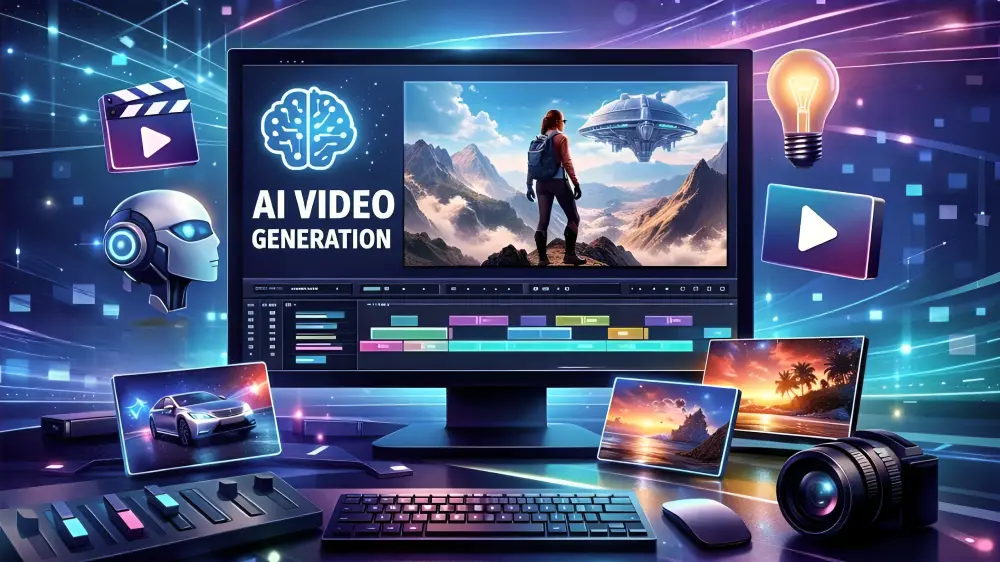

Video creation has become more accessible with the rise of artificial intelligence, producing professional-looking clips for anyone from novices and content creators to educators and small business owners. Whether you want eye-catching social media shorts, engaging explainers, or cinematic storytelling, you can now create AI video for free using powerful tools with generous free tiers or daily credits. No expensive software and no advanced skills are needed.
This article covers the simplest techniques, best tools, tips from Peconomics’ free and pro trainers (including mine), and what it takes to get perfect results in 2026.
Why create AI videos in 2026?
AI video generators transform text prompts or images into motion videos in seconds to minutes. They take care of realistic motion, camera movements, styles, and even play native audio (dialogue, sound effects, and music).
Key benefits include the following:
- Speed: Generate a 5–10 second clip faster than traditional editing.
- Cost savings: Free tiers from leaders like Google, Kling, and others let you experiment without spending.
- Creativity: Test wild ideas, consistent characters, or branded content quickly.
- Accessibility: User-friendly interfaces suit non-technical users.
Most provide better physics, prompt adherence, and 720p–1080p outputs on free plans.
Top free AI Video tools in 2026
Here are standout options with real free access (limits and features can evolve, so always verify on the site):
- Google Veo 3.1 (via AI Studio or Google Vids): Often ranked among the best for quality, realism, and prompt following. Supports text-to-video, image-to-video, and native audio. Free generations are available with a Google account (e.g., limited monthly or daily renewable credits and no watermark on many files). Excellent for high-quality drafts and shorts.
- Kling AI 3.0: Strong cinematic realism, human motion, and native audio. Offers daily credits (e.g., around 66 that refresh) on the free tier. Great for storyboards and longer clips.
- Luma Dream Machine / Ray: Cinematic results with good free tier limits (e.g., draft videos monthly). Ideal for creative, artistic videos.
- Seedance: Frequently praised for watermark-free social and product videos, daily credits, and solid quality. Fast generation.
- Runway (Gen series): Limited free credits (e.g., one-time or monthly). Powerful editing tools; watermark on free exports. Best if you need post-production control.
- Pika Labs: Good for stylised, fun clips with monthly credits—User-friendly for beginners.
Other note: Hailuo/MiniMax (fast image-to-video) and local unlimited generation with WAN models (open-source, capable GPU required).
Pro tip: Combine tools—generate in one and refine with CapCut or another free editor.
Step-by-Step: How to create AI Video for Free
1. Plan Your Video
- Define your goal (e.g., 5-second product demo, story clip).
- Write a clear prompt that includes the subject, action, camera movement (e.g., “slow pan”), style (cinematic or realistic), lighting, and mood.
- Example: “A young entrepreneur in a modern office excitedly presents a glowing smartphone to the camera; dynamic tracking shot; natural daylight; and professional 4K.”
2. Choose and Access Tools
- Sign up with Google/email (most require no credit card for basics).
- For Google Veo 3.1: Head to Google AI Studio (aistudio.google.com) or Vids. Start prompting directly.
- For Kling or Seedance, visit their sites, create a free account, and check daily credits.
3. Generate Your Video
- Paste your prompt or upload a reference image.
- Select duration (usually 4–10 seconds on free), aspect ratio (9:16 for vertical social media and 16:9 for landscape), and style options.
- Hit Generate. Wait 30–90 seconds, depending on the tool and demand.
- Iterate: Refine prompts based on results (e.g., add “smooth motion, no artefacts”).
4. Edit and Enhance (Free Tools)
- Install the clip.
- Use free editors like CapCut, Canva, or DaVinci Resolve for trimming, adding text, music, transitions, or subtitles.
- Extend clips by chaining generations or using image-to-video on the first frame.
5. Export and Share
Export in the desired resolution. Commercial usage rights (free tiers often allow personal/social use, but check if you intend to monetise).
Best Practices for Stunning Results
- Be specific in prompts — detail camera, emotion, and composition for better adherence.
- Use image references — Generate consistent characters or branded visuals first (with free image tools like Google’s).
- Test multiple tools – what fails in one may excel in another.
- Respect limits — Spread generations across days or tools to maximise free credits.
- Add audio — Tools like Veo or Kling handle native sound; otherwise, layer free stock audio or ElevenLabs voiceovers.
- Ethics and legality — Avoid deepfakes or misleading content. Credit AI use where appropriate.
For longer video segments, record a series of short scenes and piece them together in an editor.
Common Challenges and Solutions
- Watermarks/limits: Switch tools (e.g., Seedance for clean outputs) or edit them out carefully if allowed.
- Inconsistent results: Use “negative prompts” if available or more detailed instructions.
- Queue times: Generate during off-peak hours.
- Hardware for local models: Free, open-source options run indefinitely on your PC but require a good GPU.
Conclusion: Start Creating Today
AI video creation is more accessible than ever. Today, anyone can build free AI video with tools like Google Veo 3.1, Kling, and Seedance—and create material every bit as engaging and polished as anything done professionally. Let your imagination run wild: experiment, iterate, and break out of the box.
Just use a simple prompt and dive right in. The road to your first viral clip or highly polished project begins now, in moments. Happy creating!
FAQ’s
Q1. Can ChatGPT create videos for free?
Ans. No, ChatGPT cannot make videos for free. It is a text-based AI that does amazing work writing scripts, ideas, and storyboards, but does not produce real videos. Until that day comes, though, you have to use separate tools for video creation — Sora (restricted access), CapCut, or InVideo. ChatGPT can only guide you!
Q2. Is VideoGPT free?
Ans. Yes, VideoGPT provides a wide free plan! Free of charge: Make 3 short background music pieces (30 seconds). Videos per day. Go premium to get unlimited videos, longer clips, and more. Start creating for free today!
Q3. Is Google Video Maker free?
Ans. Yes, Google Video Maker is free! For free, you can make, edit & improve videos with the help of Google Photos, YouTube Create, or Gemini-enabled features. Simply log in using your Google account and begin creating videos immediately. No hidden fees for basic use. Enjoy creating!